25% Off Sabers with Sound - Code: 25SOUND Learn More
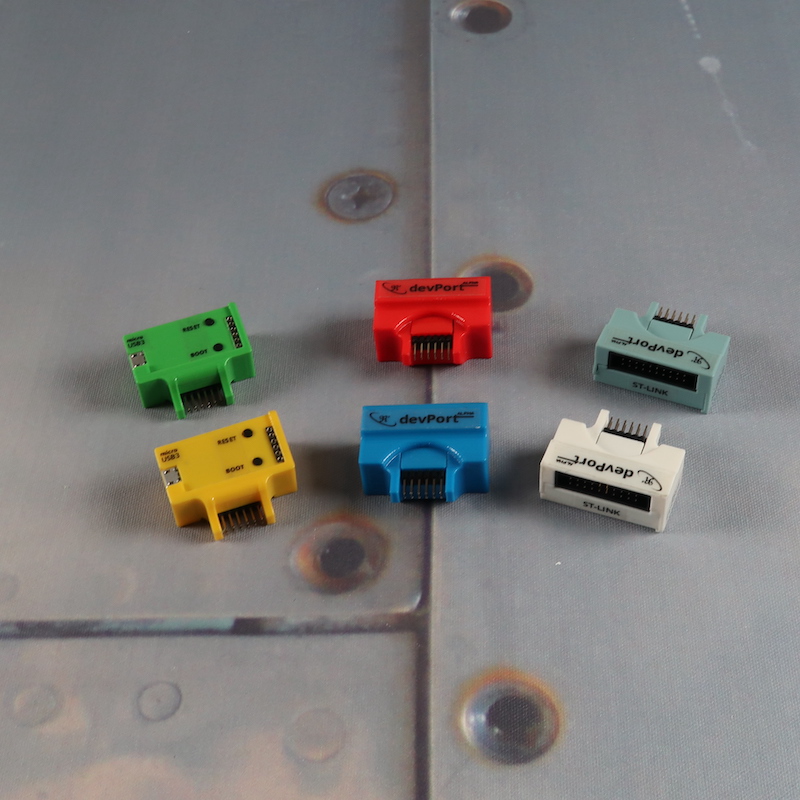
The UltraProffie DevPort is the key to unlocking advanced customization on your UltraProffie lightsaber. This DevPort acts as a micro-USB interface that connects your saber’s Arduino soundboard directly to your computer, giving you access to firmware updates, ProffieOS configuration, sound font installation, and blade style customization.
If you’re ready to move beyond preset configurations and take full control of your UltraProffie board, this guide explains how to safely use the DevPort, connect through the UltraProffie Launcher, and begin customizing your saber.
Connecting your UltraProffie board to a computer allows you to customize almost every aspect of your saber. The DevPort serves as a USB‑UART interface, letting you connect via micro‑SD or USB for editing:
Connect via micro‑SD: Remove the battery and slide open the card holder; take out the micro‑SD card and plug it into your computer. In the launcher, press Connect and allow access to the _osx_ folder. Changes made on the micro‑SD card take effect when you reinstall it.
Connect via USB: Attach the DevPort to the saber’s extension connector (or use a compatible USB‑UART converter), then connect the DevPort to your computer with a micro‑USB cable. Insert the battery, wait for the boot sound, and press Connect. No driver is required, and changes are saved directly to the UltraProffie’s storage.
Because the DevPort provides direct access to your board’s firmware, incorrect configuration changes can affect performance. This tool is recommended for advanced users who are comfortable working with programmable soundboards. Before using your UltraProffie DevPort, make sure you have:
Connect via DevPort:
Once connected to the UltraProffie Launcher, you can tailor your saber’s performance. This video overviews how to configure UltraProffie using the Launcher:
Below are the key customization options to highlight on the product page. Each requires a DevPort connection:
User Profile Controls: Users can adjust combat and stealth volume, brightness, and the master sensitivity for all motions. Motion sensitivities for swing, clash, stab, shake, tap, twist, and menu can also be customized to customize the saber’s responsiveness.
Ask questions and show off your new builds online at SaberForum.com. Read through our lightsaber FAQs for specific answers to your saber queries. If you have further questions about compatibility, firmware updates, or safe DevPort usage, our team is here to help. Contact Ultrasabers for assistance before making major configuration changes, especially if you are unsure about advanced ProffieOS settings.
NOTE: Using the DevPort with an UltraProffie soundboard voids the Ultrasabers warranty.